Account
Your Snazy login. An account owns sites (matched by email) and can hold several; the account is the identity, a site is something it owns.
Advanced CSS
A theme’s layer for hand-written CSS, for anything the visual controls don’t cover. Included on every plan.
Announcement
A dated update entry: release notes, news, notices. Ordinary content with a date and a place to shine.
Block
A reusable piece of page: it picks content and renders it. Built from a Template plus a source, edited with a live preview.
Column
A vertical division inside a Row. Layouts arrange Rows and Columns; blocks fill them.
Connected apps
The page listing every AI assistant connected to your sites, each with a Disconnect button. In your account, and per site in admin.
Connector
The address an AI assistant uses to reach your site over MCP. One universal address for all of Snazy; you pick the site when you connect.
Content (entry)
One piece of what your site says, shaped by its Template: an article, a FAQ item, a team member.
Cord
A patched connection between two jacks on the I/O bus. No cord, no flow.
Custom domain
A web address you already own, pointed at your Snazy site. Available on any plan.
Datasource
A named feed of entries a block can render as a set, such as every published entry of one template. Powers grids, lists, and this glossary.
Draft
Anything unpublished. Visitors cannot see it; you can, as a preview. Nothing goes live until you publish it.
Effects
Ready-made motion and polish a block can carry, toggled on per block. No code.
Event
What a Signals Send fires on: a value change, a click, a key press, a mouse button, or one element touching another.
Field
One input a Template defines: a heading, a body, an image, a date. Filling in fields is how you write templated content.
Free plan
Every design and content tool, unlimited pages, a real site at no cost. Reach and commerce features live on Pro.
Guard
A condition on a Signals Receive: it reacts only when the page is in a named state. How simple cords add up to real behavior.
I/O bus (patch bay)
The rack of numbered jacks where Signals wiring lives, and the one place to see everything that is connected.
Jack
One numbered socket on the I/O bus. Sends publish into a jack; receives listen on one.
Layout
A page’s skeleton: named regions in a responsive grid, holding no content of its own.
Markdown
A light way to write formatted text (headings, links, lists, bold) that renders to clean HTML. Some content bodies use it.
Match
A filter on a Receive so it answers only to specific values. List items can match per item, each reacting to its own.
MCP (the AI connector)
The open Model Context Protocol. Snazy speaks it so assistants like Claude and ChatGPT can read and edit your site with your approval.
Media library
Your site’s shared image store, on managed storage. Upload once, use anywhere.
Meta description
The short summary a Page carries for search engines and link previews. Each page sets its own.
Nav (navigation)
Your site’s menu. A Page joins it when “Include in nav” is ticked, and sort order arranges the items.
Page
A URL on your site: a title, a Layout, and a Block in each slot.
Pro plan
Adds the outward-facing machinery: a store, forms, a newsletter, community features, the AI connector, custom branding, more editors, and a write API.
Prose
A plain writing surface for an entry’s body: paragraphs, no fields to fill in. The Article template’s body is prose.
Publish
The switch that makes a draft visible to the world. Pages, entries, and changes all wait for it.
Receive
A block’s listening side: it reacts to a value arriving on a jack with a verb (set text, toggle a class, count, filter, show or hide).
Region
A named area of a Layout (hero, body, sidebar). Regions hold the slots a Page fills with Blocks.
Row
A horizontal band of a page. The Wheel appears around a Row while editing; the add-arrows create new Rows.
Search box
A live search field you drop on a list: as the visitor types, a filter cord hides the items that don’t match. No code.
Send
A block field’s publishing side: on an event (click, keypress, typing, contact) it publishes a value into a jack.
Share image
The image a Page shows when its link is posted to a social network or chat. Set per page.
Signals
The wiring system that lets blocks talk to each other: sends, receives, jacks, and cords. Interactivity with zero code.
Site
One website you own on Snazy, with its own address, content, and theme. A single account can own several sites.
Slot
One named position in a Layout that a Page fills with a Block.
Slug
The short lowercase name that identifies a page or entry, and forms the page’s address: ?page=about.
Source
Where a Block gets its content: one specific entry, the entry named after the current page, a list of entries, or a datasource.
Static layout
The simplest Layout: one column that renders the content entry sharing the page’s slug. The quickest way to make a written page.
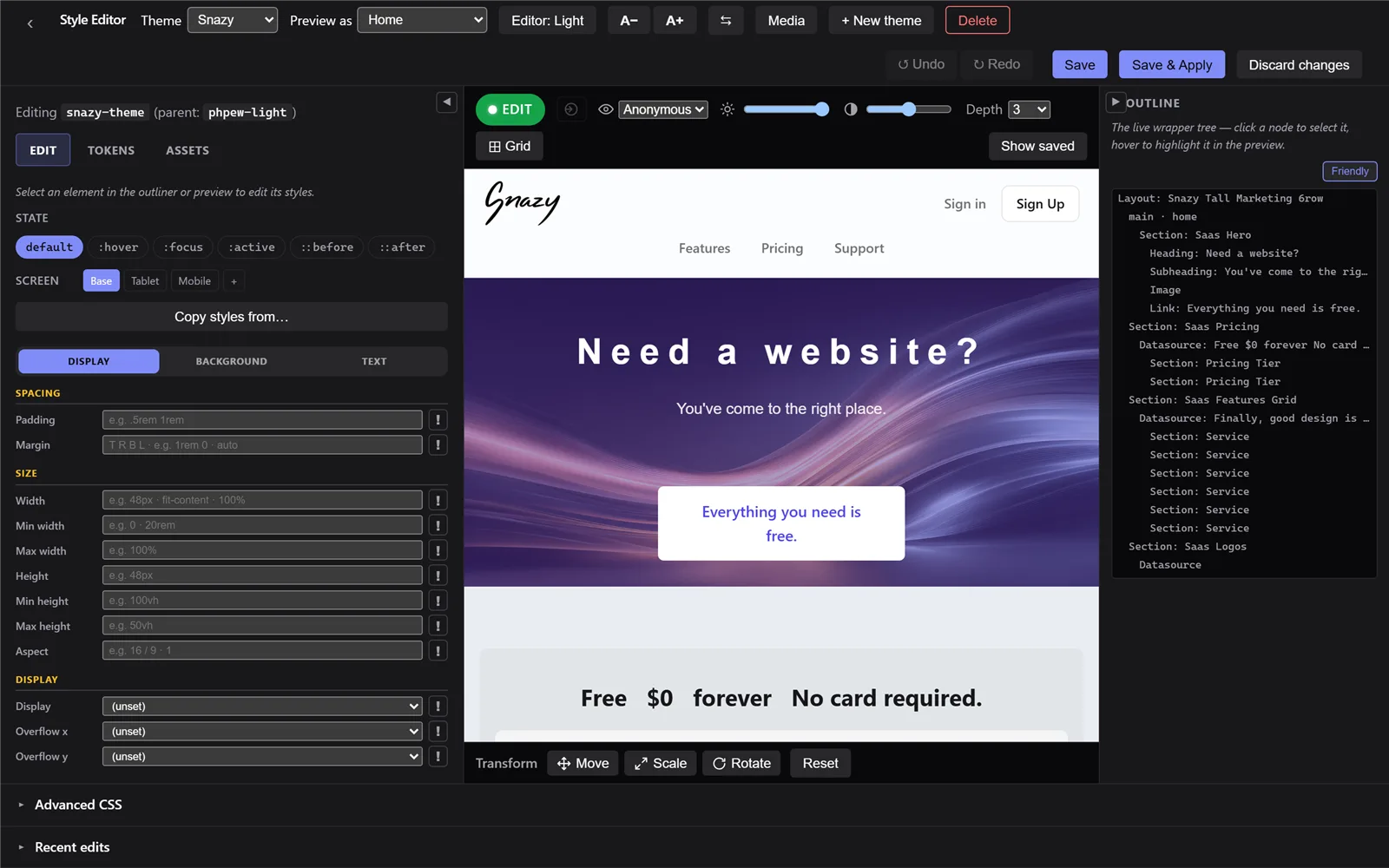
Style editor
The click-to-style tool: click any element on your live site and change exactly that.
Template
The field schema behind a kind of content, driving both its edit form and its rendering. Yours to author on every plan.
The Wheel
The ring of editing controls that appears around a Row. Every seat keeps its place, so your hands learn it fast.
Theme
Everything about how the site looks: tokens, styling, and advanced CSS, kept separate from the words.
Theme assets
Images that belong to a theme (textures, backgrounds) rather than to your shared Media library.
Token
A named design value in a theme (a core color, a font choice, a spacing step) that the basics refer to.
Verb
What a Signals Receive does when a value arrives: set text, toggle a class, count, filter, show or hide, and more.